Reading the Map
The core loop of ELA Map — planet lines, hover reads, the selection panel, pins, and how the desktop and mobile chrome differ.
Reading the Map
ELA Map draws your birth chart across the whole globe. Every place on Earth carries a slightly different set of influences, and this page is the loop you'll use to read any of them.
The lines
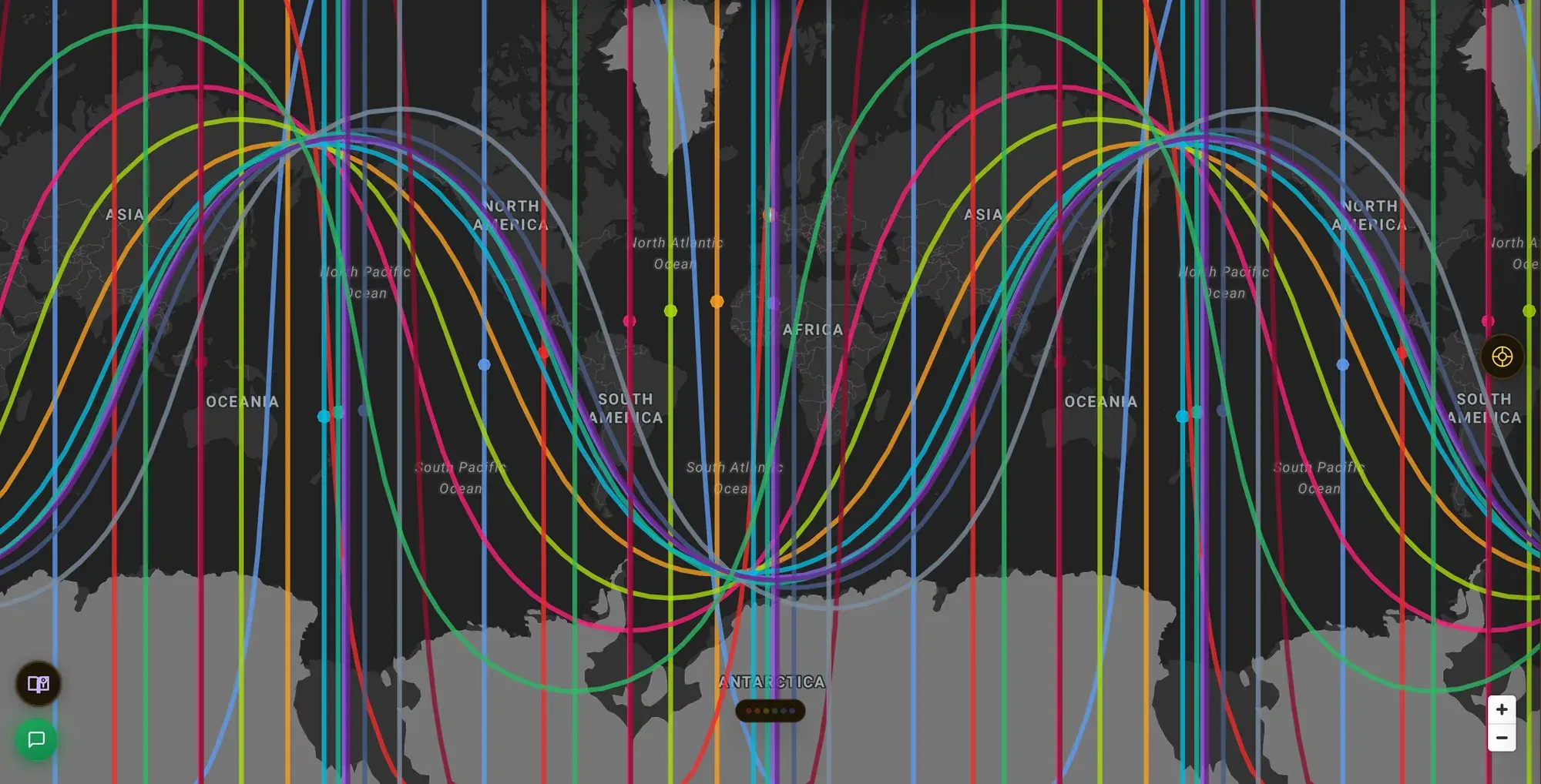
Each colored line is one planet, projected across the world. A line marks where that planet was rising, setting, overhead, or anchored below at the moment you were born — the four angle types, labeled AC, DC, MC, and IC on the map.
- Rising — where the planet stood on the horizon at dawn (its AC line); it leads, the first thing a place pulls out of you.
- Overhead — where the planet stood at the top of the sky (its MC line): the public, outward-facing side — work, reputation, what the world sees.
- Setting — where the planet was going down on the horizon (its DC line): it arrives through other people and partnership.
- Anchored below — where the planet sat beneath your feet (its IC line): the private mirror — home, roots, what happens off-stage.
Color is keyed to the planet, so Venus, Mars, and the Moon each keep their own hue everywhere they appear. For a full planet-by-planet breakdown, see the Astrocartography Lines pillar.
A note on angle names
Your birth chart has four angles — the Ascendant (ASC) or rising sign, the Descendant (DSC), the Midheaven (MC), and the Imum Coeli (IC). On the map, those same four angles become the planetary lines you see, written AC / DC / MC / IC. Same idea, two contexts: "rising sign" and ASC name a point in your chart; "overhead" and the AC / MC lines name where a planet lands on the globe.
Hover, then select
Hover a line or a spot on the map for a quick read — a compact tooltip naming the body, its angle, and the gist. It's the fast pass.
Click to select. The full reading panel slides in with the complete interpretation: which lines run through the place, how close each one is (lines have an orb, not a hard edge), and what the combination means. Every read is personalized to your chart — the same Mars line is described through your Mars, not a generic one.
Pins & saved places
Drop a pin to keep a spot on the map while you compare it against others. To keep a place for good, use Save in the reading panel — it lands in Saved Places & Notes, reachable any time from the menu.
Heatmap
Toggle a heatmap theme (love, career, wealth, healing, and more) to shade the whole map by how strongly it supports that part of life. The lines answer what's here; the heatmap answers where's strongest. See how the heatmap works for the full scoring engine behind the themes.
Light & dark
The map follows your theme — switch light/dark from the menu (desktop) or the avatar hub (mobile). Line colors are tuned to stay legible in both.
Desktop vs mobile
The reading loop is identical; the chrome differs.
Desktop gives you the top bar with search and the Astro / HD tabs, a side layer panel, and the Theme Control Card for the heatmap.
Mobile compresses everything to the edges:
- Top bar — a two-row Location Search plus the avatar hub.
- Avatar hub (tap the avatar, or swipe in from the right edge) — the Astro / HD lens toggle and navigation to Today, Discover, My Places, and Reports.
- Layers sheet — a bottom sheet for planets, angles, filters, overlays, and basemap.
- Theme FAB — a floating chip in the top-right when a heatmap is active; tap it to open the full theme controls.
Next: Relocation Analysis · Using Human Design Mode on the Map · Synastry & Composite